
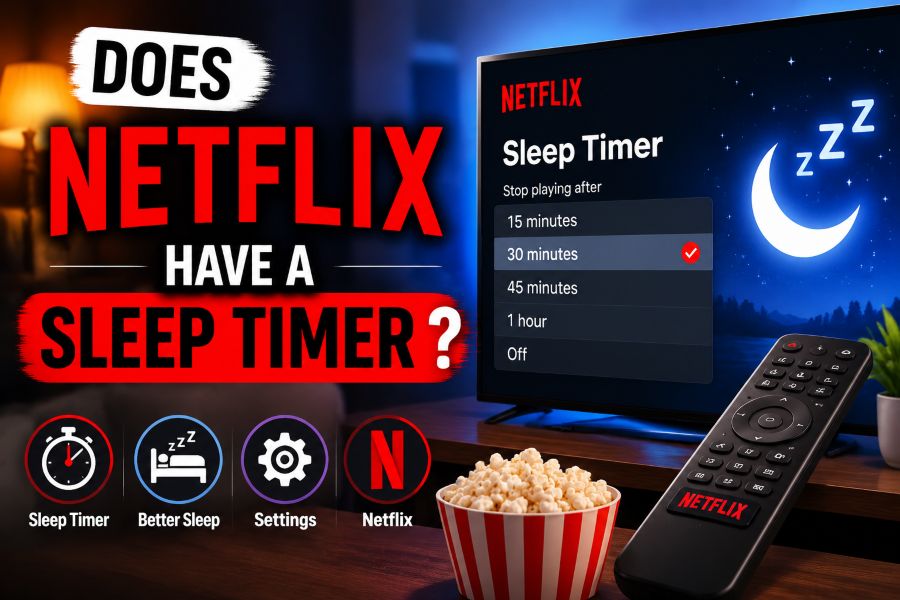
If you are wondering, does netflix have a sleep timer, the short answer is that Netflix does not currently offer a standard built-in sleep timer across all devices and accounts. That can be frustrating if you like falling asleep to a show but do not want episodes playing all night.
Netflix has tested sleep timer features in the past, and some users may remember seeing reports about timer options on mobile. However, it has not become a reliable, universal setting inside the Netflix app.
The good news is that you still have several practical ways to stop Netflix after a certain time. Most solutions depend on the device you use, such as a phone, tablet, smart TV, streaming stick, or game console.
This guide explains what Netflix offers, what it does not, and the easiest workarounds for watching comfortably at night without waking up to hours of autoplay.
Netflix is designed to keep playback smooth and continuous, which is useful during normal viewing but less ideal at bedtime. Autoplay can move from one episode to the next unless you stop it or change your account settings.
A true sleep timer would let you choose a time limit, such as 15, 30, 45, or 60 minutes, and then automatically pause or close playback. That option is not consistently available in the Netflix app today.
Some phones and tablets include system-level timers that can stop media playback. These can work with Netflix because they control audio or app behavior outside the Netflix interface.
Smart TVs and streaming devices often have their own sleep timers too. In many cases, setting the TV timer is the simplest way to stop both Netflix playback and the screen itself.
Because Netflix works across many platforms, the best solution depends on where you watch. A method that works on an iPhone may not work the same way on Roku, Fire TV, Android TV, or a browser.
What Can You Use Instead of a Netflix Timer?
Use Your TV Sleep Timer
Most modern smart TVs include a sleep timer in the settings menu, remote shortcuts, or quick controls. This is often the cleanest workaround because it turns off the display and stops Netflix indirectly when the TV powers down.
Set an iPhone Timer
On an iPhone, the Clock app includes a timer option that can stop media playback when time runs out. Choose a duration, set the timer ending action to stop playing, and start Netflix before you go to sleep.
Try Android Digital Wellbeing
Android users may be able to limit Netflix with Digital Wellbeing, bedtime mode, app timers, or manufacturer-specific tools. The exact steps vary by phone brand, but the goal is to pause or restrict the Netflix app after a chosen period.
Change Netflix Autoplay Settings
Netflix lets profiles control whether the next episode plays automatically. Turning off autoplay does not create a sleep timer, but it reduces the chance that a full season keeps playing after you fall asleep.
Use Streaming Device Controls
Devices such as Fire TV, Roku, Apple TV, and Chromecast may offer sleep, power, or inactivity settings. These settings are usually managed outside Netflix, so they affect the device or TV rather than only the app.
Use a Smart Plug Carefully
A smart plug can shut off power to some TVs or speakers on a schedule, but it is not ideal for every setup. Avoid using it with devices that may need proper shutdown, updates, or storage protection.
Watch on a Browser With Extensions
Desktop viewers may find browser extensions or operating system tools that pause tabs, mute audio, or sleep the computer. Only use trusted extensions, because browser add-ons can create privacy and security risks.
Why Netflix Playback Keeps Going
1. Netflix is built around continuous viewing, so autoplay is enabled by default on many profiles unless you turn it off in playback settings.
2. The app does not include a universal sleep timer button that appears consistently across phones, TVs, browsers, and streaming devices.
3. Device makers often provide their own sleep features, which means Netflix may rely on the operating system or hardware instead of duplicating that function.
4. Some Netflix tests and limited features may appear for certain users, but a tested feature is not the same as a permanent global release.
5. Your best option is usually to combine Netflix autoplay settings with the sleep, timer, or downtime tools already built into your device.
Best Bedtime Viewing Fixes
- Disable autoplay: Turn off automatic next-episode playback in your Netflix profile to stop long viewing sessions from continuing unchecked.
- Use device timers: Set a sleep timer on your TV, phone, tablet, or streaming device so playback stops when the device sleeps or powers down.
- Lower brightness: Reducing screen brightness can make late-night viewing easier on your eyes, especially when watching on a phone or tablet.
- Download episodes: On mobile devices, downloaded episodes can help you control what plays and avoid streaming endlessly through a queue.
- Set bedtime limits: Use Screen Time, Digital Wellbeing, or parental control tools to limit Netflix access during late hours.
- Choose shorter content: A short sitcom, documentary episode, or limited runtime movie is easier to manage than a long autoplay queue.
- Keep the remote nearby: Place the remote, phone, or tablet within reach so you can stop playback easily if you wake during the night.
How to Stop Netflix at Night
On iPhone or iPad
Open the Clock app, set a timer, and choose the option that stops media playback when the timer ends. Then start Netflix as usual. When the timer finishes, the device should stop playing audio and video instead of moving to another episode.
On Android Phones
Check your phone settings for Digital Wellbeing, app timers, focus mode, or bedtime mode. Some Android devices can pause Netflix after a set limit, while others may only dim the screen, silence notifications, or lock access after bedtime.
On Samsung TVs
Samsung TVs usually place sleep timer settings inside General, System Manager, or quick settings menus, depending on the model. Once enabled, the TV powers off after the selected time, which ends your Netflix session along with the screen.
On Roku Devices
Roku sleep options may depend on the TV brand, Roku TV model, or connected display. Look for sleep timer controls in the TV settings, the Roku options menu, or the physical remote if your model includes a timer shortcut.
On Fire TV
Fire TV devices can use display sleep behavior, Alexa routines, or TV power settings depending on your setup. You may be able to ask Alexa to turn off the TV after a period, but results vary by connected hardware.
On Apple TV
Apple TV includes sleep and power settings that can stop the device after inactivity. This is not the same as a Netflix timer, but it can help if playback stops or the device becomes idle after your viewing session.
On a Laptop
If you watch Netflix in a browser, use your computer's sleep settings, battery settings, or a trusted timer utility. You can schedule the laptop to sleep after a set period, which will stop the browser and Netflix playback.
Netflix does not currently provide a dependable built-in sleep timer for every user and device. So the practical answer to does netflix have a sleep timer is mostly no, at least as a universal feature.
That does not mean you are stuck with autoplay running all night. TV sleep timers, phone timers, app limits, and Netflix autoplay settings can all help you control bedtime viewing.
For most people, the best setup is simple: turn off Netflix autoplay and use the sleep timer on the device you watch most often. That combination gives you the closest experience to a real Netflix sleep timer.
Until Netflix adds a permanent timer across its apps, device-level controls remain the most reliable workaround.
FAQs About does netflix have a sleep timer
Does Netflix have a built-in sleep timer?
Netflix does not currently offer a universal built-in sleep timer that works across all devices and accounts. Some tests have existed, but users should not expect a timer button to appear everywhere.
Can I stop Netflix from playing all night?
Yes, you can reduce overnight playback by turning off autoplay and using a sleep timer on your TV, phone, tablet, streaming device, or computer.
Does Netflix autoplay the next episode?
Netflix can autoplay the next episode on many profiles. You can turn this off in profile playback settings, which helps prevent several episodes from playing after you fall asleep.
Is there a Netflix sleep timer on iPhone?
Netflix itself may not show a sleep timer, but iPhone users can use the Clock app timer with the stop-playing option to end media playback after a chosen duration.
Can Android stop Netflix after a set time?
Many Android phones offer Digital Wellbeing, app timers, or bedtime controls that may limit Netflix after a set period. The exact feature names and behavior depend on the device.
Do smart TVs have Netflix sleep timers?
Smart TVs usually have TV sleep timers rather than Netflix-specific timers. Setting the TV to power off after a chosen time is often the easiest solution.
Will turning off autoplay work like a sleep timer?
Turning off autoplay is not a full sleep timer because the current episode will keep playing until it ends. However, it prevents Netflix from automatically starting the next episode.