
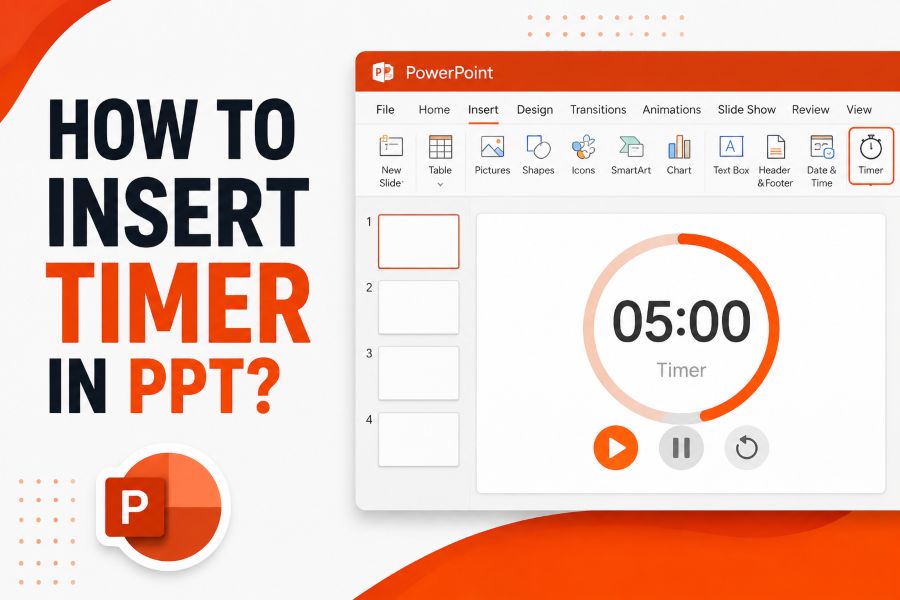
Learning how to insert timer in ppt is useful when you need to keep presentations organized, interactive, and on schedule. A visible timer can guide speakers, manage audience activities, and create a clearer sense of pace during a session.
PowerPoint does not have one single universal timer button, but it gives you several practical ways to add countdowns, progress indicators, and timed slide elements. The best method depends on whether you want a simple visual timer, an automatic countdown, or a reusable tool for live presentations.
You can build a timer with animations, insert a video timer, use add-ins, or create timed transitions. Each option has different strengths, so choosing the right one helps your presentation feel polished instead of improvised.
A timer in PowerPoint can be helpful for quizzes, workshops, training sessions, classroom tasks, meetings, and pitch rehearsals. It gives both the presenter and the audience a shared reference point.
The simplest option is to insert a pre-made countdown video. This works well when you need a quick solution and do not want to build animations manually.
Another option is to create a timer using text boxes, shapes, and PowerPoint animations. This gives you more control over colors, placement, duration, and slide design.
If you present often, a timer add-in may be more efficient. Add-ins can provide reusable countdowns, clocks, and presentation timing tools inside PowerPoint.
Before choosing a method, think about whether the timer should run on one slide, across several slides, or only during a specific activity. That decision will shape the setup.
How Can You Add a Timer in PowerPoint?
Use a Countdown Video
One of the easiest ways to add a timer is to insert a countdown video file. You can download or create a timer video, then place it on the slide where timing matters. After inserting it, adjust the size, position, playback settings, and start option so it begins automatically or when clicked.
Build a Timer With Animations
You can create a simple countdown by adding numbers in separate text boxes and applying exit animations to each one. Set each animation to start after the previous one and use a one-second delay or duration. This method takes more setup, but it keeps the timer editable inside PowerPoint.
Create a Progress Bar
A progress bar is a clean timer style for business and training slides. Insert a rectangle at the bottom or top of the slide, then apply a wipe animation that moves across the screen over a chosen duration. It shows time passing without distracting from the main content.
Use Slide Transitions
For automatic pacing, you can set slide transitions to advance after a specific number of seconds. This does not show a visible countdown, but it works well when you want slides to move on their own during a timed presentation, kiosk display, or self-running deck.
Insert an Add-in
PowerPoint add-ins can provide ready-made timer features, including countdown clocks, stopwatches, and presentation timers. To use one, open the add-ins area in PowerPoint, search for a timer tool, install it, and follow the instructions provided by the add-in.
Use Screen Recording or GIFs
If you already have a timer animation from another tool, you can insert it as a GIF or screen recording. This is useful when you want a specific visual style. Make sure the file loops or stops exactly where you need it to avoid timing confusion.
Match the Timer to the Slide
The timer should support the message instead of competing with it. Place it where it is visible but not intrusive, use colors that match your theme, and test it in slideshow mode before presenting. Small timing errors are easier to fix before the session begins.
Best Timer Options for Different Needs
1. Use a countdown video when you need a fast, simple timer that works with minimal setup.
2. Use animation-based numbers when you want a custom countdown that matches your slide design.
3. Use a progress bar when you want a subtle visual cue for meetings, lessons, or workshops.
4. Use timed transitions when the whole presentation needs to move forward automatically.
5. Use an add-in when you need timers regularly and want reusable controls inside PowerPoint.
Common Timer Setup Tips
- Test first: Always run the slide in slideshow mode because animations and media may behave differently than they do in editing view.
- Keep it visible: Place the timer where the audience can see it without covering important text, charts, or images.
- Use contrast: Choose timer colors that stand out clearly against the slide background while still fitting the presentation style.
- Avoid clutter: A timer should be easy to understand at a glance, so avoid adding too many effects or decorative elements.
- Check autoplay: If the timer should begin immediately, set the video or animation to start automatically instead of waiting for a click.
- Plan duration: Match the timer length to the activity, question, break, or speaking segment it is meant to control.
- Save backups: Keep a copy of the original timer slide so you can reuse or modify it without rebuilding everything later.
Timer Mistakes to Avoid in PPT
Making the Timer Too Large
A timer should be noticeable, but it should not dominate the slide unless timing is the main focus. Oversized countdowns can distract from the content and make the presentation feel tense. A small corner timer or slim progress bar is often enough.
Forgetting Slide Show Testing
Many timer problems only appear during slideshow playback. Videos may not autoplay, animations may run in the wrong order, and transitions may advance too soon. Testing the full deck helps you catch these issues before presenting to an audience.
Using Too Many Animation Effects
A timer does not need dramatic motion to be effective. Excessive spins, flashes, or sound effects can make the slide feel unprofessional. Simple fades, wipes, and clean number changes usually work better for most business, school, and training presentations.
Ignoring File Compatibility
If you insert a video timer, make sure the file format works on the computer you will use for the presentation. Embedded media can sometimes behave differently across devices, PowerPoint versions, or operating systems, so it is smart to test on the actual presentation setup.
Relying Only on Manual Clicks
Manual timers can work, but they depend on the presenter clicking at exactly the right moment. For countdowns, quizzes, or group exercises, automatic playback is usually more reliable. It also lets the presenter focus on the room instead of the controls.
Choosing the Wrong Timer Style
A quiz slide may need a clear countdown, while a meeting agenda may only need a subtle progress bar. Matching the timer style to the situation keeps the deck useful and professional. The more formal the presentation, the more restrained the timer should be.
Not Leaving Enough Buffer Time
Timers can create pressure, especially during discussions or live activities. Build in a small buffer so the session does not feel rushed. A timer should help manage attention and flow, not force every moment to feel rigid.
Adding a timer to PowerPoint is straightforward once you choose the right method. Videos are quick, animations are flexible, progress bars are subtle, and add-ins are useful for frequent presenters.
The best approach depends on how visible, editable, and reusable you need the timer to be. A classroom quiz, a sales pitch, and a workshop exercise may each call for a different timer style.
Before presenting, test the timer from start to finish in slideshow mode. That final check helps confirm that playback, timing, transitions, and slide layout all work as expected.
FAQs About how to insert timer in ppt
Can I insert a countdown timer directly in PowerPoint?
Yes, you can insert a countdown timer in PowerPoint by using a video, animation sequence, progress bar, GIF, or add-in. PowerPoint does not provide one default countdown button, but these methods work well for most presentation needs.
What is the easiest way to add a timer to a slide?
The easiest method is usually to insert a countdown video. You place the video on the slide, set it to play automatically or on click, and resize it to fit your layout.
Can I make a timer without downloading anything?
Yes, you can build a timer using PowerPoint shapes, text boxes, and animations. For example, you can create countdown numbers and set each one to appear or disappear after a specific time.
How do I add a progress bar timer in PowerPoint?
Insert a rectangle shape, position it as a bar, and apply a wipe animation. Set the animation duration to match the amount of time you want the bar to represent.
Can a PowerPoint timer run across multiple slides?
A single built-in timer does not automatically continue across multiple slides in standard PowerPoint. You can simulate this with timed transitions, repeated timer elements, add-ins, or custom macros if your environment allows them.
Do timer videos work in all PowerPoint versions?
Timer videos work in many modern PowerPoint versions, but compatibility can depend on the video format and device. Test the file on the same computer and PowerPoint version you will use for the presentation.
Should I use an add-in for PowerPoint timers?
An add-in is a good choice if you use timers often or need features such as stopwatches, reusable countdowns, or live controls. For a one-time presentation, a video or animation timer may be faster.